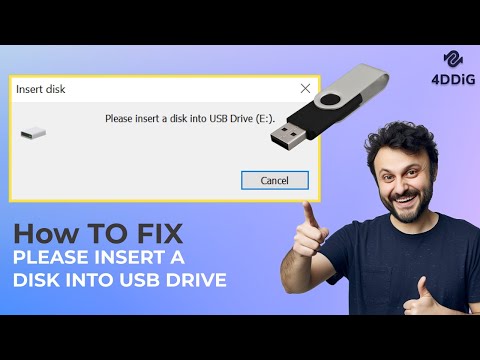
Are you having trouble with your USB drive displaying the "Please Insert a Disk into Removable Disk" error? In this video, we'll show you how to fix please insert a disk into USB drive. Recover USB data: Timestamps: 0:00 Intro 0:54 Causes of "Please Insert a Disk into Removable Disk" Error 2:14 Method 1: Manually Assign a New Drive Letter to the USB Drive 3:23 Method 2: Update USB Driver 4:29 Method 3: Format the USB Drive 5:32 Method 4: Fix Inaccessible USB Drive Using Diskpart 6:57 Method 5: Try Hardware and Devices Troubleshooter 7:55 Method 6: Delete Partition and Create a New One 9:03 How to Recover Lost Data After Fixing the Error We’ll cover six effective solutions, including assigning a new drive letter, updating drivers, formatting the drive, using Diskpart, running the Hardware Troubleshooter, and creating a new partition. Each method is explained clearly, making it easy for beginners and tech-savvy users alike. Method 1: Manually Assign a New Drive Letter to the USB Drive Learn how to assign a new drive letter to your USB device using Windows Disk Management. Method 2: Update USB Driver See how to update your USB drivers to ensure your device is being properly recognized by your computer. Method 3: Format the USB Drive In some cases, formatting the USB drive can resolve the error. We'll guide you through the process. Method 4: Fix Inaccessible USB Drive Using Diskpart Use Windows Diskpart tool to fix accessibility issues with your USB drive. Method 5: Try the Hardware and Devices Troubleshooter Learn how to run the Windows Troubleshooter to automatically detect and fix issues with your USB drive. Method 6: Delete Partition and Create a New One If other methods fail, we’ll show you how to delete and recreate a partition on your USB drive to make it functional again. However, some of these fixes may lead to data loss. If you’ve lost files during the repair process, don’t worry—I’ll also show you how to recover them using Recoverit Data Recovery. This powerful tool can quickly and efficiently restore your lost data, with one of the best recovery rates in the industry. Watch the full video to learn how to fix the error, recover lost data, and ensure your USB drive functions properly. SUBSCRIBE to get more solutions: ▶Follow us on TikTok @wondersharerecoverit ▶Follow us on Facebook ▶Follow us on Twitter ▶Follow us on Instagram ▶Follow us on Quora Space: ▶Follow us on our Quora account:
- 38677Просмотров
- 1 год назадОпубликованоWondershare Recoverit Data Recovery
How to Fix Please Insert a Disk into USB Drive
Похожее видео




Популярное
Новини