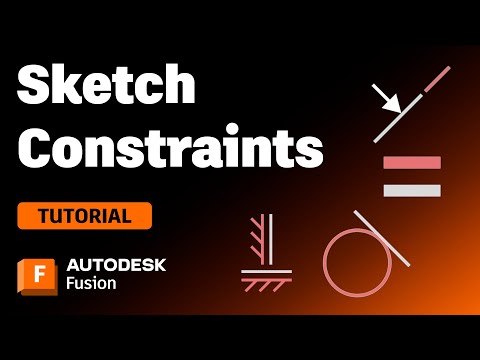
Learn how to control and fully define sketches in Fusion 360 using the complete set of sketch constraints. In this step-by-step tutorial, you’ll see practical examples of Horizontal/Vertical, Coincident, Tangent, Equal, Parallel, Perpendicular, Midpoint, Concentric, Colinear, Symmetry, and Smooth (G2) constraints. You’ll also discover how constraints combine for powerful, parametric modeling workflows in Autodesk Fusion 360. Perfect for beginners who want to sketch faster and for experienced users who want more predictable, editable designs. What you’ll learn: - Where constraints live in the Sketch menu and how to apply them quickly - When to use dimensions vs constraints for robust parametric models - Tangent setups between lines, circles, and rectangles - Keeping geometry consistent with Equal, Parallel, Perpendicular, and Colinear - Centering and aligning with Midpoint, Concentric, and Symmetry - Creating clean spline transitions with the Smooth (G2) constraint - Tips for combining constraints without over-constraining Chapters: 00:00 Getting started: sketches, dimensions, and constraints 00:21 Creating and moving lines 00:46 Horizontal/Vertical constraint on lines and circles 01:04 Horizontal/Vertical with circle center points 01:30 Coincident: points locked to lines 02:08 Tangent: lines and circles 02:47 Tangent: rectangles and circles 03:12 Equal: matching circle diameters 03:51 Equal: matching line lengths 04:02 Parallel constraint 04:32 Perpendicular + Coincident combo 05:19 Midpoint: centered geometry on edges and lines 06:06 Concentric: shared centers for circles and arcs 06:48 Colinear: sharing the same infinite line 07:17 Symmetry across a reference line 07:43 Smooth (G2): clean spline transitions 08:26 Wrap-up and what’s next Hashtags: #Fusion360 #SketchConstraints #Autodesk #CAD #ParametricModeling
- 11178Просмотров
- 4 года назадОпубликованоWhat Make Art
Master Sketch Constraints in Fusion 360: Tangent, Coincident, Equal, Parallel, and More
Похожее видео




Популярное
Новини