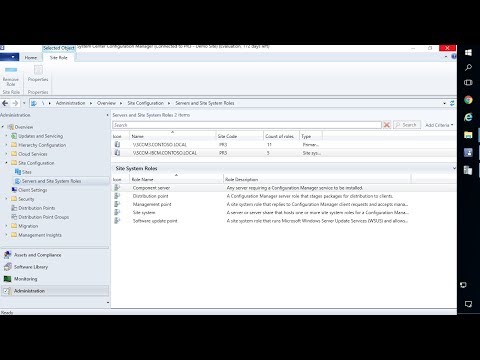
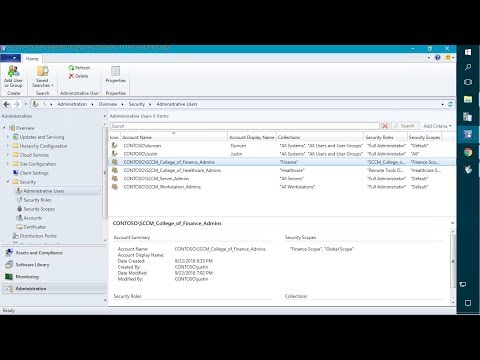
You can follow me on Twitter for #ConfigMgr tips and tricks! In this video guide, we will be covering how to setup Co-management in Microsoft SCCM. Co-management will allow you to use the full Configuration Manager client as well as the Microsoft Intune MDM. For more details see the accompanying blog post Topics in Video: Introduction – (0:00) Overview of Co-management in SCCM and Microsoft Intune: (0:21) The first scenario overview, using Azure AD Join Only (Cloud Domain Join): (1:02) The second scenario overview, using On-Prem domain join and auto-register in Azure Hybrid AD and MDM: (1:26) Validate Azure AD and Intune enrollment is enabled in the online portal: (1:53) Covering CMG prerequisites for the option to Install the SCCM Agent from an Azure AD only scenario: (4:12) Add the co-management subscription into the SCCM console: (5:58) Uploading the to auto-deploy through Intune to install the SCCM agent through CMG: (8:16) Enroll a device into Azure AD from OOBE to have it auto-enroll into MDM/Intune: (11:16) Validate the device enrolled in MDM and the SCCM Client auto started and review the CCMSetup download from CMG over the internet: (12:38) Review ClientIDStartupManager to review how the Azure AD Authentication is used to be approved within the SCCM environment: (14:31) Validate in the Configuration Manager Control Panel applet the co-management is showing enabled: (15:47) Review the scenario for registering on-prem domain joined devices to register into Hybrid Azure AD and auto-MDM enroll in Intune: (17:23) Install Azure AD Connect and Configure the OU for the user/device sync we need for the lab: (18:13) Validate a valid public UPN suffix is configured in Active Directory Domain and Trust and configure the on-prem users that will be used to auto-enroll devices with the public UPN in AD Users and Computers: (19:31) Set GPO to have devices auto-enroll into MDM/Intune when the device registered into Azure AD: (26:08) Run dsregcmd /status to see if the device is registered with Azure AD: (28:07) Configure devices to auto Azure Hybrid AD Join in Azure AD Connect: (28:51) Validate on-prem domain joined SCCM client switched to be co-managed after auto-enrolling into Intune: (32:08) Validate both devices are showing in Intune and the SCCM console with co-management capabilities: (33:17) Deploy device reset to both co-managed devices: (34:59) Helpful Resources: Tutorial: Configure hybrid Azure Active Directory join for managed domains – Enable Windows 10 automatic MDM enrollment – #enable-windows-10-automatic-enrollment Co-management for Windows 10 devices – Enroll a Windows 10 device automatically using Group Policy – Prerequisites for co-management – #prerequisites Auto-Pilot for new Windows 10 Devices – #new-windows-10-devices #SCCM #Intune
- 75783Просмотров
- 7 лет назадОпубликованоPatch My PC
How to Set Up Co-Management in Microsoft SCCM to Connect to Microsoft Intune
Похожее видео









Популярное
Новини