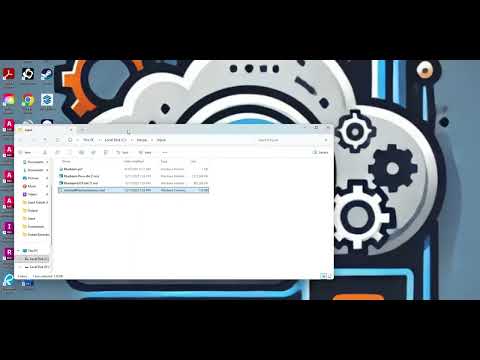
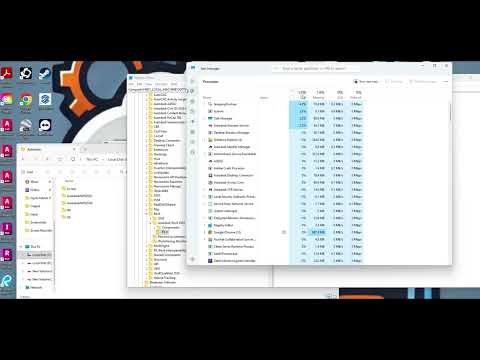
How to Create a Revit 2026.4 Deployment and Deploy Using Intune | Step-by-Step Guide In this video, we walk you through the process of creating a Revit 2026.4 deployment and setting it up with Microsoft Intune for streamlined management and distribution. Whether you're an IT admin or someone looking to simplify software deployment, this guide covers everything you need to know! 🔧 What’s Covered in This Video: How to create a Revit 2026.4 deployment package for Intune Step-by-step process for configuring the Revit 2026.4 deployment Intune Install Command: -ExecutionPolicy Bypass -File .\ Power Shell Script: Copy-Item -Path "Autodesk\*" -Destination "C:\Autodesk\" -Recurse -force /c "C:\Autodesk\ -q" Start-Sleep -Seconds 120 Remove-Item -Path "C:\Autodesk\ " -Recurse -Force Registry Key HKEY_LOCAL_MACHINE\SOFTWARE\Autodesk\Revit\Autodesk Revit 2026\R4.0 Target the RxID Integrating Revit 2026.4 with Microsoft Intune for easy distribution Learn how to use Dependencies and Supersedence Set Revit 2026 Install as the Dependency but not for auto install Set it to Supersede all previous 2026 Update By the end of this tutorial, you'll be able to deploy Revit 2026.4 across multiple devices using Intune, saving time and ensuring consistency across your team. 🎥 Don’t forget to subscribe for more tutorials on software deployment, IT management, and Autodesk products!
- 272Просмотров
- 4 недели назадОпубликованоIntune in AEC
Revit 2026.4 Update with Intune
Похожее видео



Популярное
Новини