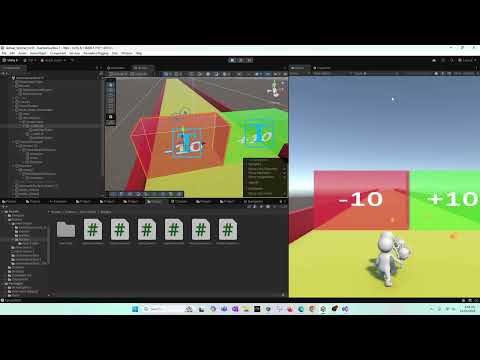
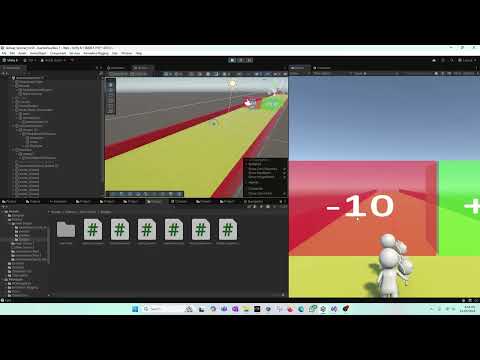
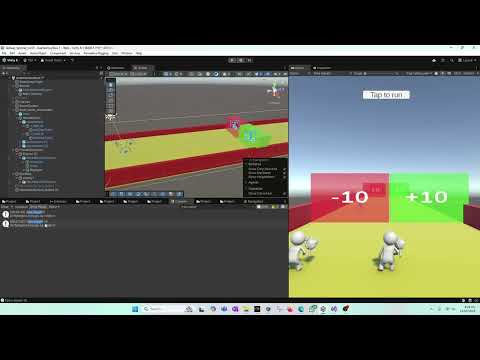
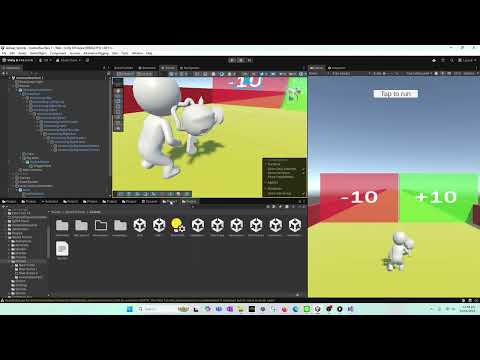
Welcome back! In this Unity tutorial, we continue from the previous lesson where we prevented friends, squad members, and agents from overlapping. Now we take the next major step: making the camera fully player-aware so it automatically adjusts when the player size or squad size increases. 🎯 What You’ll Learn in This Tutorial ✔ How to make the camera move back dynamically as the player grows ✔ How to store and access squad/friends count through a static Singleton class ✔ Writing simple level data variables inside the Player Movement script ✔ Making the camera adjust based on number of friends / squad size ✔ Why we use vs ✔ How to avoid passing references through many objects ✔ How to prepare logic for walls that increase or decrease the squad size 🧠 Main Concepts Covered ➤ 1. Level Data Inside Player Script We set up variables like friendsNumber to track how many allies the player currently has. This value starts at 0 and increases or decreases as gameplay progresses. ➤ 2. Using a Static Singleton Instead of passing references or using delegates, we use a Singleton static class to store data like the total squad count. Any script can read/write this value instantly without extra connections. ➤ 3. Making the Camera Player-Aware We assign the camera GameObject in the inspector, then in Update() we check the squad size and adjust camera distance using: += * cameraVector * friendsNumber; This makes the camera automatically move backward as the team grows. ➤ 4. Why ? Because our camera faces the player from the +Z direction, moving the camera backward (-Z) using gives a natural zoom-out effect as squad size increases. ➤ 5. Preparing Wall Logic Right now the walls (+10 / –10) change player size but don’t tell the system how many friends are added or removed. In the next tutorial, we will connect that data to the wall objects as well.
- 10Просмотров
- 3 дня назадОпубликованоTasty Cherry Games
🔥 How to Make a Game Like Lost War - Part 34 || Player-Aware Camera & Dynamic Squad Size System
Похожее видео





Популярное
Новини