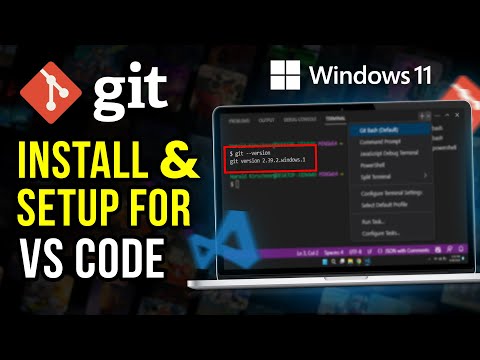
Streamline your development workflow by learning how to install Git and fully integrate it with Visual Studio Code. This tutorial guides you through the essential setup to ensure Git is properly configured on your system and seamlessly connected to VS Code for smooth version control. You’ll start by installing Git for Windows using the official Git installer from . Once installed, the tutorial covers verifying Git’s availability through the terminal, setting your global Git username and email to match your GitHub profile, and enabling Git support inside Visual Studio Code. After setup, you’ll initialize a local Git repository in VS Code, stage files, commit changes, and prepare to push to GitHub—all directly from the Source Control panel. This approach keeps your Git workflow fast and centralized without needing external tools or command-line switching. Whether you're just starting with Git or configuring Visual Studio Code for the first time, this guide ensures your environment is correctly set up for efficient project management and collaboration. If this helped, consider liking and subscribing. ⚙️ Commands Mentioned: git --version git config --global "Your Name" git config --global "you@ " 🔗 Links: Git Windows Download Page - Git macOS Download Page - #vscode #vscodetips #vscodetutorial #git
- 304Просмотров
- 6 месяцев назадОпубликованоQuikTut
How to Install and Set Up Git in VS Code (2025)
Похожее видео







Популярное
Новини