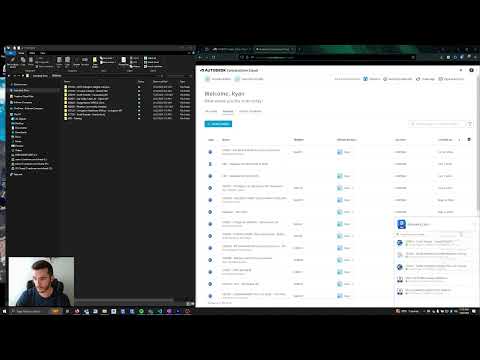
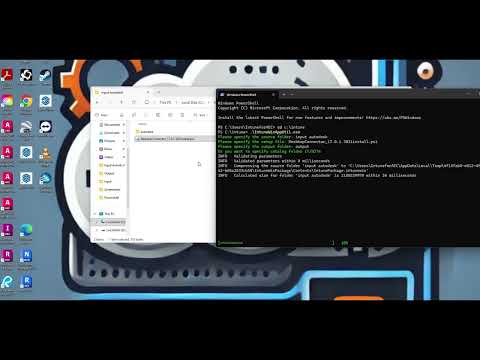
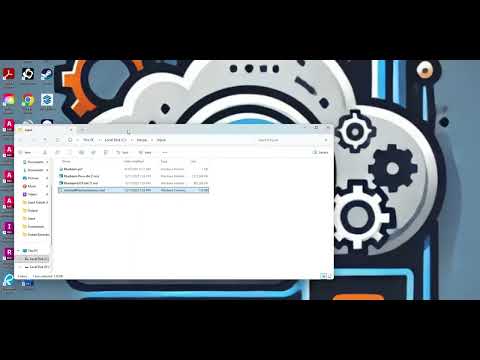
How to Create a Desktop Connector Deployment and Deploy Using Intune | Step-by-Step Guide In this video, we walk you through the process of creating a Desktop Connector deployment and setting it up with Microsoft Intune for streamlined management and distribution. Whether you're an IT admin or someone looking to simplify software deployment, this guide covers everything you need to know! *** Yes I know the first install failed but I wanted to show it anyway as its not always your script sometimes not running as admin makes it fail too!*** 🔧 What’s Covered in This Video: How to create a Desktop Connector deployment package for Intune Step-by-step process for configuring the Desktop Connector Intune Install Command: -ExecutionPolicy Bypass -File .\ Powershell: (thanks for the added line @andrewk8847 ) Copy-Item -Path "Autodesk\*" -Destination "C:\Autodesk\" -Recurse -force taskkill /im /f /c ""C:\Autodesk\ \image\ " -i install --silent" Start-Sleep -Seconds 120 Remove-Item -Path "C:\Autodesk\ -Recurse -Force Registry Key for Detection: HKEY_LOCAL_MACHINE\SOFTWARE\Microsoft\Windows\CurrentVersion\Uninstall\{137CA267-49CF-42D0-BCE3-B1A0709651A3} Registry Value for Detection: DisplayVersion set to Equals
- 227Просмотров
- 4 месяца назадОпубликованоIntune in AEC
Autodesk Desktop Connector 16.16.0.2792 Intune deployment
Похожее видео








Популярное
Новини