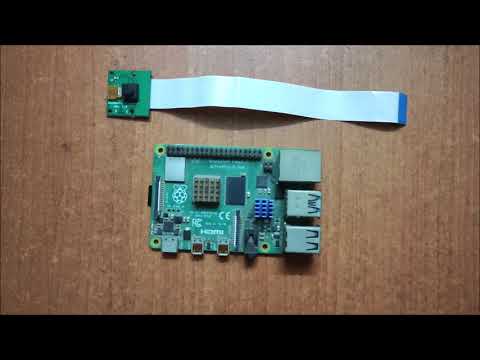
In this video we are connecting a camera to the Raspberry Pi 4 model B using Raspberry Pi OS. The camera is a Smraza Raspberry Pi 4 camera module. 🔒Stay safe online with NordVPN 👉 Get it here: (affiliate link) NordVPN helps protect your data, lets you stream securely from anywhere, and blocks ads & trackers with Threat Protection Pro™. It’s fast, easy, and works on all your devices. 🛡️ I may earn a small commission if you use this link (at no extra cost to you) — thank you for supporting the channel! Your Amazon link to this camera - Pi 4 8GB kit (dual fan case!) - any purchase made from these links may benefit this channel - many thanks! In this video we begin connecting a Smraza Raspberry Pi 4 camera module to the Raspberry Pi 4 for the first time. Surprised with an easy setup and install on the Raspberry Pi OS, not to mention the video quality was good as well. Hopefully this video will answer at least 2 questions: How do I know if my Pi camera is working? and How do I use my Raspberry Pi camera? Connecting a camera to the Raspberry Pi 4 can be frustrating if you're new to the Pi, if you need proof just check out 3:48. While looking for a Raspberry Pi 4 camera I came across Smraza on Amazon. I noticed that most cameras in the $20 price range have very similar quality so I purchased the Smraza camera module. In this video we get introduced to the Smraza camera module and show you, what we hope is, an easy pi cam setup and install. We also look at the --help command and get a quick glance at many of the different commands and camera settings for raspberry pi. The Camera module connection can all be done through with terminal command lines in Raspberry Pi OS. join us on Facebook: join us on Twitter: Chapters: 0:00 intro 0:20 intro to Smraza Raspberry Pi 4 camera module 2:21 install the Smraza camera ribbon 3:48 I share a problem I ran into 4:52 setting up the camera on Raspian desktop 5:23 Raspberry Pi camera operation commands Let me know what ya think! Thanks for watching~
- 42679Просмотров
- 4 года назадОпубликованоBMonster Laboratory
Connecting A Camera To The Raspberry Pi 4 Model B In Raspberry Pi OS - The Smraza Pi 4 Camera Module
Похожее видео



Популярное
Новини