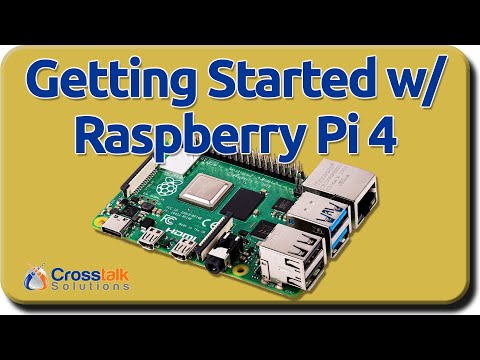
This is a Raspberry pi 4 tutorial video (the Linux PC), learn What is Raspberry Pi and how to get started with Raspberry Pi 4 as a beginner, what interesting projects you can make, and what accessories you need to jump in. Let's see how to use the new Raspberry 4 as a desktop PC using a Linux OS. So basically it's a credit-card-sized single-board computer that allows you to fill your basic computer requirements. This tiny computer is made for newbies and kids to learn coding at a very cheap price, so they can make their dream projects. In comparison to Windows and Apple PC, it is not a desktop replacement but it has its own features, 1st it runs on a Linux-based operating system called “Raspbian” which is free to download, easy to use, and closely same to windows and mac. In addition, we have a Linux terminal on Raspbian which is not available on regular desktop computers. As always I tried to make high-quality and easy-to-understand videos. I included what is raspberry pi 4, its hardware specification, and its features. How to set up raspberry pi 4 with operating system installation and what cool thing you can do with the new pi 4 model b. Below is the index of what's in this video: 0:00 Raspberry Pi 4 Review 00:45 Where I got Raspberry Pi 4 (4GB unit) 01:15 What Raspberry Pi 4 accessories you need 02:05 Hardware Specification and features of Pi 03:12 How to install Raspbian OS on Pi 05:50 How to Setup Raspberry Pi 4 07:27 Raspberry Pi 4 Boot Time Real 07:55 What you can Do in Raspbian OS 09:55 Which type of projects you can do In this video I am also covering what raspberry pi 4 accessories you need to get started, all you need a screen (monitor) to display a USB keyboard and mouse for the interface, and a microSD card to install the operating system. Below are the links for the required items: ⚡️ Buy Raspberry Pi 4: OR ⚡️ Raspberry Pi 4 Unit (4GB Ram): (SeeedStudio) (Amazon) (Banggood) Coupon code: BGINRPI4 (For India only) coupon code: BGrp25568 ($5 off ) ⚡️ Power Adapter for Pi: (Amazon) (Banggood) ⚡️ Samsung 32GB MicroSD Card: ⚡️ Keyboard and Mouse (USB): ⚡️ Micro HDMI to HDMI cable: ⚡️ Cool LG Desktop Monitor: SeeedStudio Official Store: How to Install Raspbian Operating System in Raspberry pi 4 ?? ================================================= You need to download their applications and OS image 📥 Raspbian OS Link: 📥 File Extractor Link: 📥 Image Flashing Software: 📥 SD Card Formatter Link: Official Hardware Specifications of Raspberry Pi 4 ========================================= Broadcom BCM2711, Quad-core Cortex-A72 (ARM v8) 64-bit SoC @ 1GB, 2GB, 4GB or 8GB LPDDR4-3200 SDRAM (depending on model) 2.4 GHz and 5.0 GHz IEEE wireless, Bluetooth 5.0, BLE Gigabit Ethernet 2 USB 3.0 ports; 2 USB 2.0 ports. Raspberry Pi standard 40 pin GPIO header (fully backward compatible with previous boards) Check out more videos from my Channel ================================ ▶▶ 7-inch Touchscreen LCD for Raspberry Pi 4: ▶▶ How to install 5 Inch LCD on Pi: ▶▶ How to Install 3.5 Inch LCD on Pi: ▶▶ Lattepanda Alpha Review Video: ▶▶ Raspberry Pi Complete Guide for beginners: ▶▶ Portable Raspberry Pi Desktop Setup: ▶▶ External Graphics Card on Laptop: ▶▶ eGPU Setup on Lenovo Laptops: ▶▶ I Used Rode NT-USB for Audio Watch Video: ▶▶ If you Like my video plz SUBSCRIBE: ❤ Thanks for watching the raspberry pi 4 getting started tutorial, hope you enjoyed and gained knowledge about Pi. I hope this is the best raspberry pi 4 tutorial for beginners. Now the future is yours to build awesome and big projects, good luck !! DISCLAIMER: This video's description contains affiliate links, This helps support the channel and allows us to continue to make videos like this. Thank you for your support!! #raspberrypi4 #raspberrysetup #tutorial
- 225368Просмотров
- 5 лет назадОпубликованоTricK i Know
Raspberry Pi 4 - How to Setup & Get Started (Best projects for beginner)
Похожее видео




Популярное
Новини