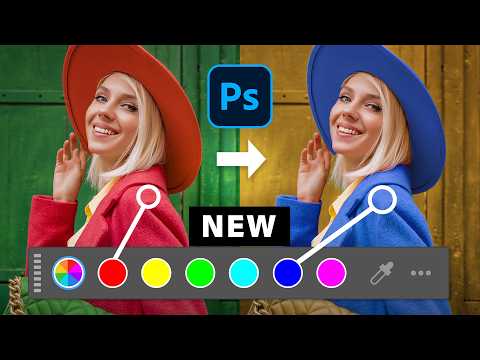
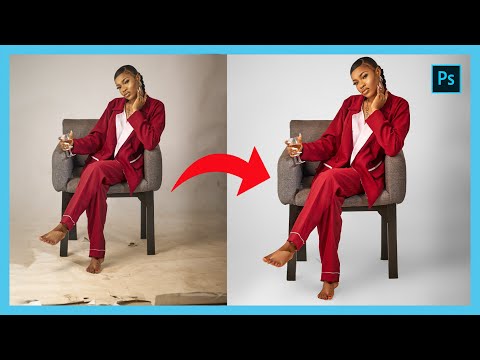
Changing the background color in Photoshop sounds easy—until halos, jagged edges, and color bleed ruin the shot. In this tutorial, I’ll show you two pro techniques that solve those problems and keep your edges clean. These are the exact methods I use on movie posters when realism matters most. In this Photoshop tutorial, you will learn to: ✔️ Change Background Color without halo artifacts ✔️ Use masking and color targeting for perfect results ✔️ Fix dark backgrounds that ruin edge hair detail ⏱️ CHAPTERS – Change Background Color in Photoshop [00:00] INTRO – Why Background Color Changes Get Messy [00:24] METHOD 1 – Use Select Subject + Masking for Clean Results [01:33] Invert the Mask and Colorize the Background [02:17] Fix Mask Imperfections by Painting Manually [03:34] PRO TIP – Why Dark Backgrounds Expose Halos [04:12] FIX – Paint Over Flyaway Hair to Remove White Edges [04:46] Restore Lost Highlights with Mask Brush [05:36] EXAMPLE 2 – Target Background Color Without Affecting Foreground Objects [06:52] Use Object Selection to Mask Blue Jeans & Eyes [08:16] Final Adjustments: Hue, Saturation & Lightness for Realism 🔔 SUBSCRIBE for more tutorials ➜ 📺 Watch This Next: Master the Hue/Saturation Adjustment Layer ➜ 🌐 CONNECT ➜ TikTok: @jrfromptc ➜ Instagram: 🎬 Tutorial by Jesus Ramirez – Photoshop Training Channel #PhotoshopTutorial #ChangeBackgroundColor #PhotoshopCompositing
- 55321Просмотров
- 6 месяцев назадОпубликованоPhotoshop Training Channel
Change Background Color in Photoshop Without Messy Edges
Похожее видео






Популярное
Новини