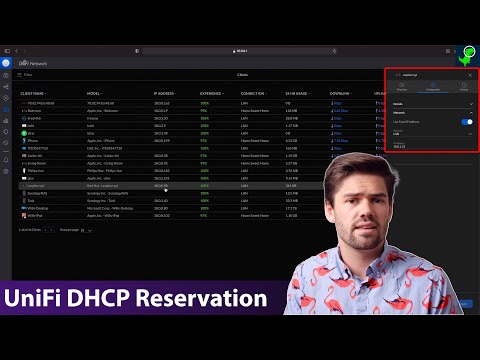
In this video, we’ll walk you through how to reserve a static IP address in a UniFi network using the UniFi Controller (for devices like Dream Router, Gateway Express, or Dream Machine). We'll cover: Reserving IP addresses for printers, servers, or key devices Setting local DNS overrides Manual MAC address entry for devices not yet on the network Why you need to reboot a device to apply the new IP If you're not using a UniFi router (e.g. you're using a 3rd party router), this process won’t apply — but if you are, this is a great way to keep your key devices organized and consistently reachable. ⏱️ Timestamps 00:00 – Intro: What this tutorial covers 00:03 – Only works with UniFi routers (not just Cloud Key) 00:20 – Manual vs. auto method: creating reservations 00:39 – Comparing to Windows Server and SonicWALL 01:17 – Go to Client Devices in UniFi 01:22 – Option 1: Add Client manually with MAC address 01:36 – Option 2: Click device → Settings → Fixed IP 01:44 – Set static IP (e.g. ) 01:48 – Optional: Assign local DNS per client 01:58 – Click Apply 02:03 – Important: You must reboot device or wait for DHCP renewal 02:16 – Outro and IT support offer 💬 Need Help With Your UniFi Network? If you're a business and need help with UniFi setup, troubleshooting, or IT support — or you just have questions — leave a comment below or reach out via our website. We're here to help. Learn more about how we can help your business: Website: Follow us on socials Youtube: @fort44inc Instagram: Facebook: X:
- 578Просмотров
- 1 месяц назадОпубликованоFort44 Inc.
How to Set a Static IP Reservation in UniFi (Dream Router, Express, UDM, etc.)
Похожее видео




Популярное
Новини