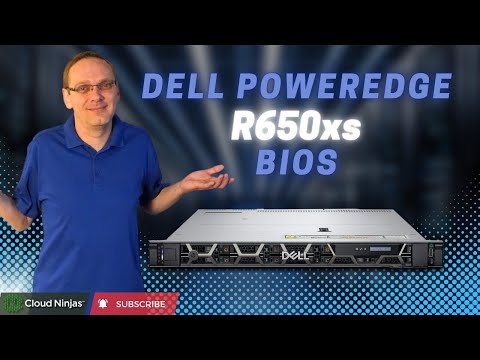
Dell PowerEdge R650xs - This will be a continuation in our series, and we will focus on iDRAC. We will use a USB drive and an XML file. We will show you how to check what iDRAC license you have, and we will show you the steps to upgrade an Basic Management license to an Enterprise license. This video series includes: 1. Processors: 2. Memory: 3. Drives: 4. RAID: 5. BIOS: 6. iDRAC: 7. IP Address: 8. Mass Updates: 9. Network Cards: 10. Power Supplies: 11. Racking: 12. Supported OS: If there is anything else you would like to see, then please drop a comment, and let us know. We want this to be a great tool for the Dell community. This video will be all about iDRAC9 on the PowerEdge R650xs server. We will show you how to check on which version/license your Dell R650xs server currently has. The four license options are Basic Management, Express, Enterprise and Datacenter. An Enterprise license allows for remote access to your server. We will then show you how to upgrade from Basic Management to Enterprise. This video will show you, step by step, how to install your Enterprise License. You will start out by configuring your iDRAC IP address on your system and can follow the steps in the video. Custom configure your very own Dell PowerEdge R650xs Server: Purchase a compatible Processor for your Dell PowerEdge R650xs Server: Purchase compatible Memory for your Dell PowerEdge R650xs Server: Purchase compatible Drives for your Dell PowerEdge R650xs Server: Purchase a compatible Network Card for your Dell PowerEdge R650xs Server: Purchase a compatible iDRAC license for your Dell PowerEdge R650xs Server: Purchase a compatible Windows Server OS for your Dell PowerEdge R650xs Server: Music: Road Trip Drifting by Music Unlimited / Road Trip Drifting ( Follow us on: @cloudninjas
- 74Просмотров
- 3 дня назадОпубликованоCloud Ninjas
Dell PowerEdge R650xs Server | iDRAC9 Upgrade | iDRAC Basic Management to Enterprise | Web Interface
Похожее видео







Популярное
Новини