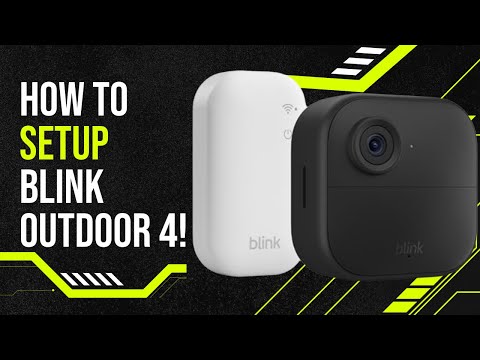
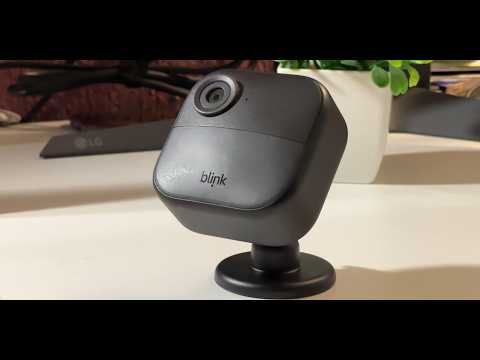
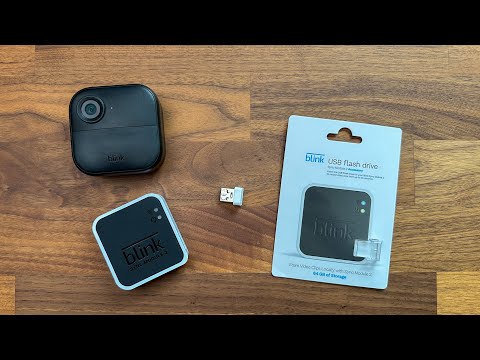
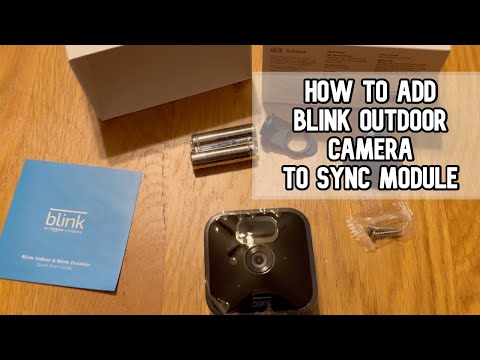
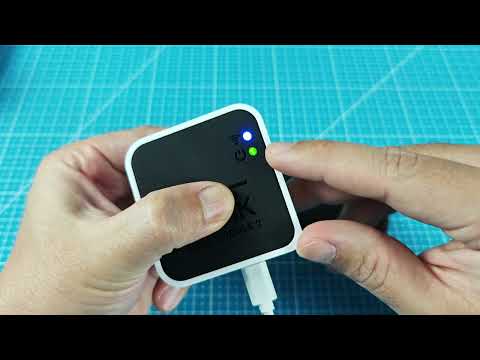
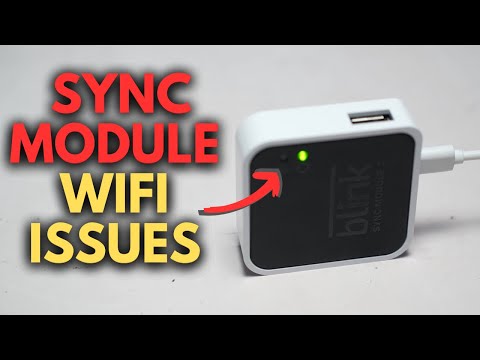
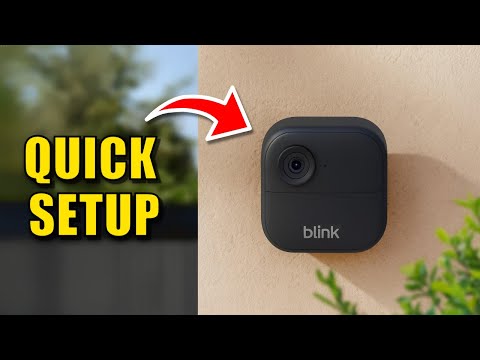
If you want to connect your BLINK OUTDOOR 4 camera system to the BLINK app, this video will show you step-by-step how to add the sync module to your app for easy setup and control. Learn how to download and install the BLINK app, create an account, and sign in. We’ll guide you through scanning the QR code or entering the serial number, naming your system, powering up the sync module, and connecting it to your Wi-Fi network. By following these instructions, you’ll have your BLINK OUTDOOR 4 sync module online and ready to use in just a few minutes. This process is essential for anyone setting up BLINK OUTDOOR 4 for the first time or adding a new sync module to their system. How to add sync module to BLINK OUTDOOR 4 app? How to connect BLINK OUTDOOR 4 sync module to Wi-Fi? Where is the QR code on BLINK OUTDOOR 4 sync module? 0:00 Introduction 0:08 Download and install BLINK app 0:15 Create account and sign in 0:22 Add sync module in app 0:32 Scan QR code or enter serial number 0:36 Name your system 0:58 Plug in sync module and power up 1:23 Reset sync module if needed 1:41 Discover and connect device 2:10 Select Wi-Fi network 3:10 Finish setup and complete 3:39 Sync module is online #BlinkOutdoor4 #SyncModule #BlinkApp #HomeSecurity Find out more: Follow us on Instagram ► Like us on Facebook ► Tweet us on Twitter ► Support us on TikTok ► @ Use Reset Guides for many popular Apps ►
- 9219Просмотров
- 4 месяца назадОпубликованоHardReset_Pro
BLINK OUTDOOR 4 – How to Add Sync Module to App
Похожее видео
Популярное
Новини