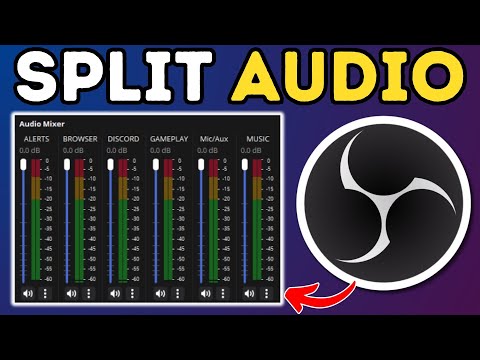
Setting up audio for new streamers is complicated, and confusing, but after hours of work, your mic sounds great, your game is clear, and music, well it’s amazing, you’ve done it!... except your viewers keep screaming at you to fix your audio. Today, we’re going to be setting up OBS's new feature "Audio Application Capture" that allows you to capture individual applications on your PC and route those different audio sources carefully into different channels inside OBS, allowing you to have much better control over your audio. I am also going to show you how to set up your OBS recordings to have separate audio tracks for your game, music, discord, and microphone audio in OBS. 🔴 Subscribe To Keep Up To Date With The Latest Twitch Trends: 👑 Download the BEST Full Stream Packages By OWN3D: 👑 Check out Eljay Live Right now: 🔴 Download FREE Animated Overlays From Our Discord: 👑 Download Sonar For Streamers: What are Virtual Audio Channels? If you’re a beginner think of it like this, when you plug a microphone into your Computer, you get a Microphone Source that you can add to OBS, and if you plug a second Mic in, you get a second microphone source to add as well. Two different sources, two different mics. Sonar creates new virtual audio sources on your computer, like adding a microphone, but rather than sending your voice to that source, you’re sending your computer programs that create audio, so your games, spotify, google chrome, you name it. How To Add Global Audio Sources To OBS Open OBS, Click Settings, go to Audio, and select your microphone. I want you to remove your mic, and all your other captures, set them to disabled, and instead just add SteelSeries Sonar - Stream to Mic/Aux Audio 1, from there, click apply, and you’ll see this single audio level at the bottom. 🕘Timestamps: 0:00 How To Set Up OBS Global Sources 1:00 How To Edit OBS Audio Tracks In Advanced Audio Properties 1:30 How To Change Your Default Stream Audio Track 2:55 How To Add OBS Audio Application Capture Sources For Music 3:35 How To Add OBS Audio Application Capture Sources For Specific Games 4:20 How To Copy Audio Sources Between Scenes 4:40 How To Separate Alerts and OBS Sounds 5:10 How To Separate Game Capture Audio For ALL Games 6:00 How To Test You've Split Your Sources Correctly The style of this video is similar to Alpha Gaming and Gaming Careers in parts. A large influence on this series has come from content creators like Wild4games and Nutty. 🎬Watch our most recent videos: 🎬 Playlists You Might Like: Guides and Tutorials: Streamlabs OBS Guides: 💬 Streaming Guides: The Full Guide to Twitch Graphics: Best Games To Grow On Twitch --------------------------------SOCIAL-------------------------------- 👥Facebook: 🐦Twitter: 💬Website: 🐦Go force Eljay to use Twitter: #obsstudio #audio #streaming
- 47456Просмотров
- 3 месяца назадОпубликованоStream Scheme
How To Separate Game, Music, Discord Audio In OBS In 7 Minutes
Похожее видео





Популярное
Новини