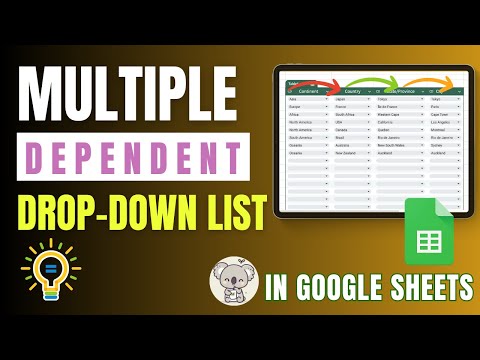
Join 400,000+ professionals in our courses here 👉 Learn how to create dependent dropdown data validation lists in Google Sheets and have different drop-down values based on the value of another cell. Basically the second drop down depends on the value of the first drop-down. Once we have the first drop down menu setup, we will create a dynamic dependent drop-down list that's based on the value of the first drop-down. ⬇️ DOWNLOAD the workbook here: There are different ways you can get this done depending on how your data is setup. If you have a tabular data set you might need another function than if your data is organized across multiple columns. I show 2 different ways of creating the dependent dropdown list depending on your setup. 00:00 Dependent Drop-Down Lists in Google Sheets 01:06 Dependent Drop-Down Lists in Google Sheets with Tabular Data 05:05 Dependent Drop-Down Lists in Google Sheets with Data in Report Format LINKS to complete Google Sheets Playlist: _____________________________________________ ★ My Online Excel & Google Sheets Courses ► ➡️ Join this channel to get access to perks: 👕☕ Get the Official XelPlus MERCH: 🎓 Not sure which of my Excel courses fits best for you? Take the quiz: 🎥 RESOURCES I recommend: 🚩Let’s connect on social: Instagram: LinkedIn: Note: This description contains affiliate links, which means at no additional cost to you, we will receive a small commission if you make a purchase using the links. This helps support the channel and allows us to continue to make videos like this. Thank you for your support! #googlesheets
- 597668Просмотров
- 5 лет назадОпубликованоLeila Gharani
Google Sheets - Dependent Drop Down Lists | 2 Ways
Похожее видео






Популярное
Новини