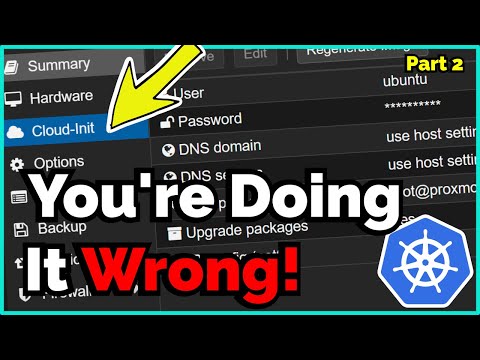
In this video, I’ll show you how to create a cloud-init enabled Ubuntu (Noble) VM in Proxmox VE 9, entirely through the web GUI using the new Import Disk feature — no command-line hassle required. You’ll learn how to: Download and prepare the Ubuntu Noble cloud image Create a new virtual machine in Proxmox Import your disk using the GUI Configure cloud-init credentials, SSH keys, and network settings Set the correct boot order and launch your VM Whether you’re new to Proxmox VE 9 or upgrading from an older version, this step-by-step guide makes it simple to deploy a cloud-ready VM fast. Commands used in the video: %20to%20Use%20Cloud-Init%20in%20Proxmox%20VE%209%20with%20the%20New%20Import%20Disk% Related topics: Proxmox VE 9 tutorials Cloud-init on Ubuntu Home lab automation Virtual machine setup guides Resources: Ubuntu Cloud Images → Proxmox VE Docs → If this helped you, like and subscribe for more Proxmox and home lab tutorials! #proxmox #cloud #ubuntu #homelab l #virtualization
- 1388Просмотров
- 1 месяц назадОпубликованоvirtualize everything
How to Create a Cloud-Init Ubuntu VM in Proxmox VE 9 (Using the New Import Disk Feature!)
Похожее видео






Популярное
Новини