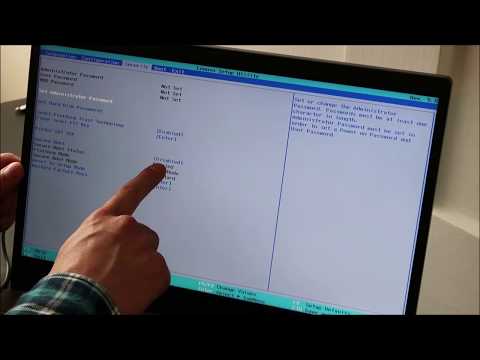
Lenovo OneKey recovery is a backup and recovery tool preinstalled in Lenovo computers and used to factory reset your system within one click. It is very useful when your computer is in the event of a disaster. 🔔 Download Free AOMEI OneKey Recovery Now 👉 🔔 Related Reference How-To Article 👉 ----------------------------------------------------------- ✅ 【About this Video】 ⏰ 0:00 Start ⏰ 00:45 How to Use Lenovo OneKey Recovery Function ⏰ 03:09 The Best Alternative to Lenovo OneKey Recovery ----------------------------------------------------------- ✅ 【Detail】 On a Lenovo computer, open Lenovo OneKey Recovery to come to its interface. To back up a Lenovo laptop or desktop, just click "System Backup", then select the target path and click Next to Start Backup. To factory reset your Lenovo PC, click "System Recovery". Select your task and start to restore. If your computer is unbootable, you need to use the "Novo" button. This button is used to boot your computer in recovery mode and start the recovery program. To restore your backup with the "Novo" button, please follow the steps below: 1. Power off the PC, and press the "Novo" button to start the Lenovo OneKey system. 2. In the Novo Button Menu, select "System Recovery". 3. Select “Restore from initial backup” or “Restore from user’s backup”, then click "Next". 4. Click "Start" and wait until the process is finished. Lenovo OneKey recovery also has many disadvantages: 1. It can only be used on Lenovo computer 2. The recovery partition will be unavailable, especially after reinstalling the system or resizing disk space. 3. It only keeps the most basic utility and applications during the restoration. That's to say, the installed programs and personal data on the system partition will be lost. And so on. ----------------------------------------------------------- ✅ 【Tips】 To avoid the restrictions of Lenovo OneKey Recovery, you could turn to trusted and reliable backup and recovery software like AOMEI OneKey Recovery. The recovery partition created by it is supported in all the Windows operating systems and it is compatible with all branded computers. Besides, this software has a special keyboard key, F11 or A, which is used to boot your computer when something goes wrong, so you don’t need to use a bootable drive to boot your computer. It also supports restoring all the installed programs and data on the system drive. 1. Run AOMEI OneKey Recovery. Then, you will see its main page. Click on “OneKey System Backup" on the left side. 2. Choose the recommended backup option - "Backup system to AOMEI OneKey Recovery Partition", and click "Next". 3. Click "Advanced" to preview the backup effect, and then tag "Start Backup". 4. After that you can click “OneKey System Recovery” to recover your backup. When encountering a system crash or something like that, you can keep tapping "F11"/ "A" at the system startup to start the recovery. ----------------------------------------------------------- How to Use Lenovo OneKey Recovery| The Best Alternative to It how to use Lenovo one key recovery,how to use Lenovo recovery function,how to use Lenovo one key recovery alternative,lenovo onekey recovery,how to use onekey recovery,lenovo onekey recovery not working,lenovo onekey reovery alternative,onekey recovery lenovo windows 10,how to use onekey recovery in lenovo windows 10,lenovo onekey recovery without losing data #lenovo#lenovoonekeyrecovery#recoverwindows10
- 35530Просмотров
- 4 года назадОпубликованоAOMEI
How to Use Lenovo OneKey Recovery|The Best Alternative to It
Похожее видео











Популярное
Новини