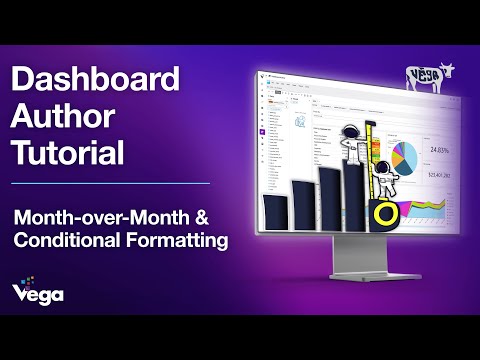
Kick off your Vega Cloud journey with this Quickstart video. In this introduction, we’ll walk you through logging in, navigating the Vega interface, setting up your profile, and configuring notifications. You’ll also learn how to create your first FinOps analysis by building a report to track weekly AI spend across multiple cloud providers. Along the way, you’ll pick up helpful tips and tricks—like using Cost Navigator, applying filters, exporting data, and saving bookmarks for quick recall. By the end, you’ll be ready to explore Vega’s core capabilities and take your first step toward more innovative cloud cost management. 👉 Stay tuned for the rest of the Quickstart series, where we’ll dive deeper into Vega’s Inform, Optimize, and Operate features. 00:00 Intro & Overview 00:35 Logging into Vega Cloud 01:41 Spend Overview & Sidebar Navigation 02:19 Inform: Dashboards & Visibility 02:23 Optimize: Recommendations & Savings Opportunities 03:08 Operate: Enterprise Scheduler 03:33 User Profile Setup & Avatar 04:24 Configuring Notifications & Alerts 05:26 Admin & Organization-Level Settings 06:03 Example Analysis: Tracking AI Spend 06:43 Cost Navigator Overview & Controls 08:55 Grouping Data & Visual Graphs 09:46 Multi-Cloud AI Spend Example 10:15 Setting Weekly Granularity 11:06 Filtering for AI Spend (Taxonomy) 12:40 Reviewing Weekly AI Spend Results 13:20 Exporting Data (Excel/CSV) 13:28 Expanding Groupings & Details 13:57 Saving Reports with Bookmarks 14:38 Resetting Filters & Recalling Saved Views 15:23 Creating Your First FinOps Analysis 15:49 Recap & Key Takeaways 16:19 Next Steps: Inform Section Deep Dive Learn more about Vega Cloud: Home: Contact: About: Reports: Self-Guided Tours: Case Studies & Data Sheets: Partners: Inform: Optimize: Operate:
- 87Просмотров
- 2 месяца назадОпубликованоVega Cloud
Vega Quickstart Guide | Navigating the UI
Похожее видео







Популярное
Новини