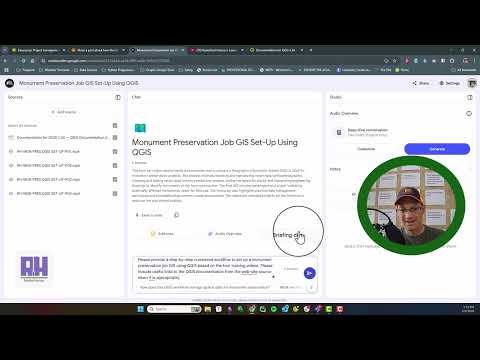
Summary --- Landon from RH introduces Google's Notebook LM as the "coolest AI tool" despite its occasional "inconsistent output" [0:01]. He demonstrates how to use Notebook LM as a "super search tool" for emails related to specific projects, anticipating Microsoft integrating Copilot into Outlook in the future [0:01]. To get emails into Notebook LM, he uses Q tools, a free add-on for an older version of Outlook, to save emails as PDFs, and then combines them into a single master PDF file using Nitro Pro [1:05]. After completing the "clunky" initial steps, Notebook LM can generate timelines and summaries of emails, and filter emails by content, sender, or recipient [1:05, 3:05]. It can also provide narrative summaries [3:05, 9:58]. According to Landon, this method is way more powerful than the search tools built into Outlook, and RH will start using it as part of their project closeout procedures [9:58]. Table Of Contents --- 0:01 Introduction to Google Notebook LM as a tool for email management 1:05 Using Q tools to export emails from Outlook 3:05 Generating timelines and summaries of emails in Notebook LM 4:17 Supercharged query/search on emails 5:41 Bellevue ranch project example 7:17 Refining search prompts 9:58 Generating narrative summaries of emails FAQ --- Question 1: What is Google Notebook LM and what is it used for in the video? Google Notebook LM is described as an amazing AI tool that can be used for various tasks, including email management [0:01]. In this video, it is specifically used as a "super search tool" to efficiently manage and analyze emails related to particular projects or subjects [0:01]. The presenter demonstrates how Notebook LM can generate timelines, summaries, and perform targeted searches within a collection of emails, making it a powerful tool for project closeout procedures and information retrieval [3:05]. Question 2: How can emails from Outlook be integrated into Google Notebook LM? A: Due to the limitations of directly importing emails into Google Notebook LM, the video explains a workaround using KuTools, a free add-on for older versions of Outlook [1:05]. This tool allows you to save emails in PDF format, ensuring that important header information like date and sender are included [1:05]. These individual PDFs are then combined into a single master PDF file using tools like Nitro Pro before being uploaded to Google Notebook LM [1:05]. Question 3: What kind of information can be extracted from emails using Google Notebook LM? A: Once the emails are uploaded into Google Notebook LM, it can perform various functions such as generating timelines of emails from oldest to newest, providing summaries of email content, and filtering emails based on specific criteria like sender, recipient, or keywords [3:05, 4:17, 5:22]. The tool can also create narrative summaries of emails and extract subject lines [7:17]. This enables users to quickly find specific information within a large volume of email correspondence [5:41].
- 2433Просмотров
- 10 месяцев назадОпубликованоRedefined Horizons Learning
Using Google NotebookLM for E-mail Management
Похожее видео









Популярное
Новини