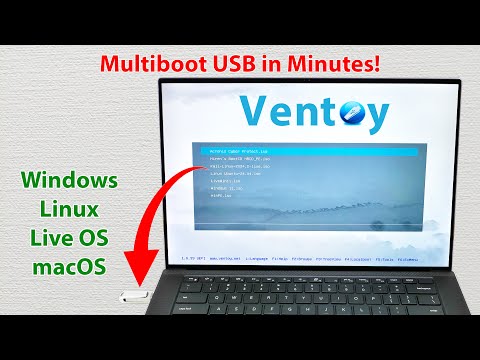
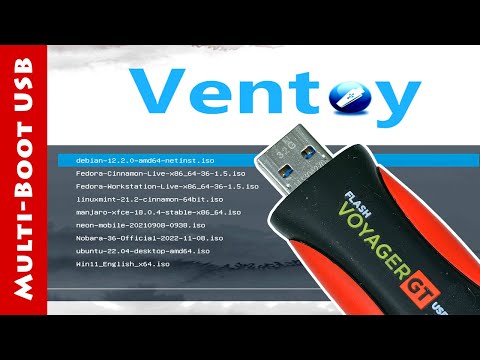
What if one USB drive could install Windows or any operating system, boot Kali Linux for cybersecurity, start Tails for complete privacy, reset forgotten Windows passwords, repair any PC, and still work like a normal pendrive for file storage? In this video, I show you how to turn your USB drive into a powerful multi-boot toolkit — without flashing the pendrive again and again. You simply copy ISO or image files, boot from USB, and choose what you want to run. ✅ What You’ll Learn in This Video: ✔️ What Ventoy is and how it works ✔️ How to download and install Ventoy ✔️ When to choose MBR vs GPT ✔️ How Secure Boot works with Ventoy ✔️ How to boot from USB using BIOS/UEFI ✔️ How to disable Secure Boot when required ✔️ How to boot Windows, Linux, Kali, Tails & Live OS ✔️ How to add password reset tools like Hiren’s BootCD & Offline NT ✔️ How to organize ISO or image files ✔️ How to use one USB as both bootable toolkit + normal storage ✅ Tools & Operating Systems You Can Boot Using Ventoy: Windows 10 / Windows 11 Or any Operating System Linux (Ubuntu, Fedora, Debian, etc.) Kali Linux for cybersecurity or any Live Operating System Tails OS for privacy or any Live Operating System System Rescue Tools Password Reset Tools (Hiren’s BootCD PE, Offline NT) Portable OS images (VHD, VHDX, IMG) ✅ Important Notes: Secure Boot is disabled in this video because some tools used are not Secure Boot-compatible Use a USB 3.1 or faster pendrive for the best performance You can still use the Ventoy USB for normal file storage Updating Ventoy does NOT delete your files 🔗 MBR vs GPT Explained (Link in Description as Mentioned in Video) If you found this video useful: 👍 Like | 🔁 Share | 🔔 Subscribe for more explainer videos from InfoVault This video is created by Naresh Ramini — Explainer, Content Creator & Infographic Video Designer at InfoVault.
- 202Просмотров
- 4 дня назадОпубликованоinfovault
Turn Your USB Drive into a Powerful Toolkit: Install OS | Boot Live OS | Repair | Rescue #multiboot
Похожее видео







Популярное
Новини