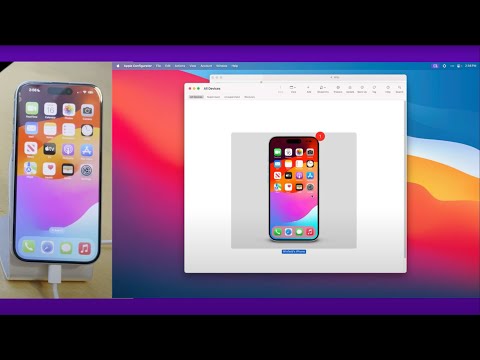
Two ways to add an iPhone to Apple Business Manager (ABM): the “old school” Mac method with Apple Configurator 2 (useful when you need a wired setup/Wi-Fi profile), and the fast way using Apple Configurator for iPhone (scan at the Wi-Fi screen—no cables). I also show assigning the device to your MDM in ABM (Intune, Jamf, Kandji, etc.), and what “Release from organization” actually does. Before you start - Have ABM access and at least one MDM server set up in ABM. - For the Mac method: install Apple Configurator 2 and (if needed) create a Wi-Fi profile. - For the iPhone method: install Apple Configurator on an iPhone signed in with an ABM admin. Chapters (timestamps) 00:00 – Intro: what ABM does (and doesn’t) 00:45 – Method 1 overview: Configurator on a Mac (wired) 00:58 – Create a Wi-Fi profile in Configurator 02:13 – Connect iPhone via cable; prepare (manual configuration) 03:00 – “MDM server” placeholder and trust anchors (why it’s okay) 04:18 – Link your ABM organization 05:01 – Setup Assistant steps (why they don’t matter here) 05:03 – Attach the Wi-Fi profile; Prepare and wipe 05:59 – Verify device appears in ABM 06:59 – Assign the device to your MDM in ABM 07:13 – Why the Mac method is slower (cables/profiles) 07:50 – Release from organization (what that means in ABM) 09:03 – Erase iPhone to re-do enrollment path 09:24 – Method 2 overview: Configurator for iPhone (faster) 09:39 – Get the reset iPhone to the Wi-Fi screen 10:31 – Scan the “Add to organization” code 11:06 – iPhone added; tap Erase iPhone to finalize 11:26 – Why the iPhone method is best at scale 12:03 – Wrap-up & subscribe References
- 6160Просмотров
- 3 месяца назадОпубликованоDean Ellerby MVP
Manually add an iPhone into Apple Business Manager using the Apple Configurator App
Похожее видео








Популярное
Новини