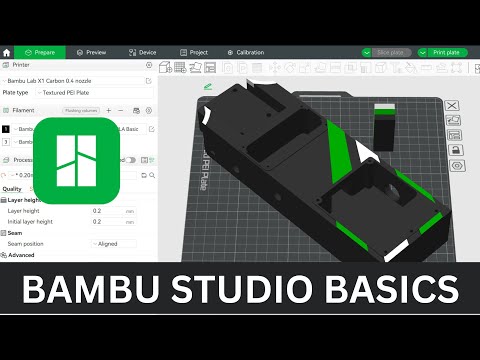
I'll walk you through the ins and outs of using the painting tool in the Bambu Studio Slicer software to get multi-colored prints. 😎 Get your FREE Bambu Studio Angle Threshold Cheat Sheet - Printers I use: Bambu Lab H2D: Bambu Lab X1-Carbon: Bambu Lab P1S: Bambu Lab A1: Bambu Lab A1 Mini: Printer Accessories: Bambu Lab AMS 2 Pro: Bambu Lab AMS Lite: Bambu Lab AMS: Great Build Plates for Better Adhesion: BIQU Cryogrip Plates: Bambu Lab SuperTack: Good Cheap Filament: Kingroon PLA: Kingroon PLA Triple Silk: Favorite Rainbow Filaments: ❤️ Flashforge Rapid PLA: Creality Rainbow: Kingroon Matte Rainbow: Ziro Fast Color Change: iSanmate Rainbow: DISCLAIMER: This video is not sponsored. Some of the links are affiliate links in which I will receive a small commission. Textured Paint Palette: Bambu Labs Website: 00:00 - Intro 01:43 - Filament Tab 03:53 - AMS Device Settings 04:04 - Changing AMS Colors 05:21 - Syncing AMS 05:41 - Filament Settings 06:19 - Painting 3D Models 07:32 - Height Range Tool 10:48 - Prime Towers 13:26 - THANK YOU! 14:05 - Hand Painting a Duck 15:04 - Circle Tool 16:27 - Sphere Tool 17:37 - Fill Tool 20:22 - Triangle Tool 21:51 - Gap Fill Tool 22:28 - Extra Painting 23:47 - Slicing the Duck 14:13 - Understanding Waste 26:51 - Optimized Models for Painting 29:25 - Print Times 30:22 - Sign Print 31:34 - Duck Prints 33:45 - Panda Print 37:36 - The Waste Problem 39:52 - Conclusion DISCLAIMER: This video is not sponsored. Some of the links are affiliate links in which I will receive a small commission.
- 347672Просмотров
- 2 года назадОпубликованоItsMeaDMaDe
Bambu Studio 101 | Beginners Guide to Bambu Slicer Software | AMS & Multi-Color Prints
Похожее видео



Популярное
Новини