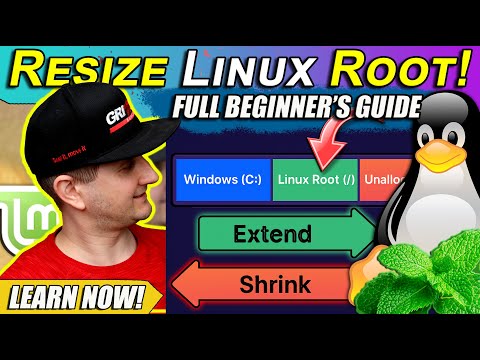
Learn how to resize (shrink and extend) Linux disks, volumes and partitions safely. This tutorial covers shrinking and extending partitions on live systems. Welcome to TECHMIMIC. Monkey see, monkey do! View, imitate, replicate. You have an issue to fix, you found us, we tell you how to fix it. Boom! TIMESTAMPS 00:00 Intro 00:09 Setting the scene for Linux Mint, Debian and Ubuntu 00:48 Standard “Disks” utility 01:57 Terminal commands (Optional) 03:27 Resize with the “Disks” utility 05:11 Upgrade to GParted 07:59 Create Live USB with GParted to resize the root partition 10:33 It’s the same across Debian-based Linux distributions 10:46 Boot from GParted Live Image and resize the root partition 13:14 Boot back into Linux and check 14:22 Extend the root filesystem LINKS How to CLONE the SYSTEM disk in LINUX (For Linux Mint, Debian and Ubuntu) How to CLONE the SYSTEM disk in LINUX MINT (with CloneZilla) Linux Mint playlist Linux Playlist Support the channel with a cup of coffee Or a YouTube "Super Thanks", which directly supports the channel and will be visible to all in the comments! MUSIC Jazzaddict's Intro by Cosimo Fogg DISCLAIMER The instructions in this video for resizing a partition and creating a bootable USB device are for informational purposes only. Follow these steps at your own risk. TECHMIMIC cannot be held responsible for any data loss, damage, or issues that may arise. Always ensure you are working with the correct disk, partition or drive to avoid accidental deletion or formatting. Always back up your data before making any changes. REAL HUMAN WARNING Strictly human brain. No AI was harmed during the creation of this video. #Howto #tutorial #Linux #LinuxMint #resizepartition #rootpartition #disks #gparted #targetisbusy #resizedisk
- 28710Просмотров
- 11 месяцев назадОпубликованоTECHMIMIC
How to RESIZE (Shrink / Extend) the root PARTITION in LINUX (For Linux Mint, Debian and Ubuntu)
Похожее видео





Популярное
Новини