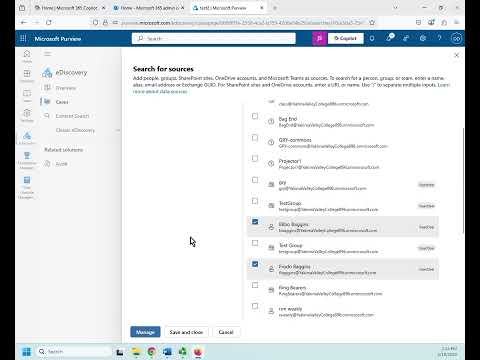
Learn how to use Microsoft 365 eDiscovery (Standard) step by step. In this tutorial, I’ll show you how to create a case, run searches, place content on hold, review results, and export data for legal or compliance purposes. Using a real-world example at Hawthorne Bell Solicitors, we’ll walk through the Jones Case investigation, showing how to find emails, Teams messages, and SharePoint documents with just a few clicks. ✅ What you’ll learn in this video: - What Microsoft 365 eDiscovery is and when to use it - The difference between Discovery (Standard) and eDiscovery (Premium) - How to create a case and add data sources - How to build searches with keywords and conditions - Placing content on hold to preserve evidence - Adding results to a review set and tagging them - Exporting results for legal teams or regulators - When to close a case in Microsoft 365 Perfect for IT admins, compliance officers, and business owners who need to understand Microsoft 365 data protection and legal investigation tools. #Microsoft365 #eDiscovery #DataProtection 🔒 Protect Your Microsoft 365 Data – Free 30-Day Trial Did you know Microsoft doesn’t actually back up your data? Accidental deletions, ransomware, or disgruntled employees can all put your emails, OneDrive files, SharePoint sites, and Teams messages at risk. With the Bearded 365 Backup Service, powered by Redstor, you can back up and restore everything in minutes — and try it free for 30 days. 👉 Start your free trial here: 🧑🏫 My Online Courses ► Weekly Cyber Awareness Training - ► Discover Microsoft 365 and Get More Done - 🆓 FREE Facebook Group From security to productivity apps to getting the best value from your Microsoft 365 investment, join our Microsoft 365 Mastery Group 🆓 FREE Microsoft 365 Guide Our FREE Guide - How to Build a 5 Star Business Using Microsoft 365 ► Download our guide here today: 💻 Want to Work Together? Drop me an email: jonathan@ 😁 Follow on Socials TikTok @bearded365guy Instagram @bearded365guy 📽️ Video Chapters 00:00 Funny eDiscovery Intro with Charles Bell 01:26 What is Microsoft 365 eDiscovery? 02:43 Discovery (Standard) vs eDiscovery (Premium) Explained 03:51 Creating a Case in Microsoft 365 eDiscovery 06:41 Adding Custodians and Data Sources (Mail, OneDrive, Teams) 08:57 Building Search Conditions with Keywords and Filters 09:57 Placing Content on Hold in eDiscovery 11:36 Running Queries and Reviewing Results Summary 12:05 Adding to a Review Set and Tagging Files 15:16 Exporting Search Results in eDiscovery 16:14 Closing a Case in Microsoft 365 eDiscovery
- 8786Просмотров
- 2 месяца назадОпубликованоJonathan Edwards
Microsoft 365 eDiscovery Tutorial | Search, Hold & Export Data
Похожее видео






Популярное
Новини