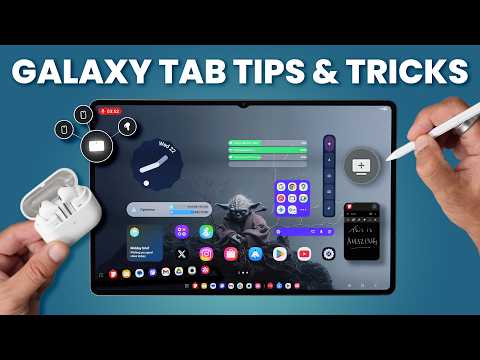
Just unboxed the Galaxy Tab S11 Ultra, here are the 20 settings and pro tips that make it faster, smarter, and truly yours. From gesture navigation and S Pen power moves to Good Lock customizations and battery protection, this step-by-step setup guide helps you unlock the best of One UI 8 on Android 16. We start with fingerprint security and the Auto Blocker toggle (for APK/customization fans), then dial in navigation, multi-window, split screen, and pop-up view so your 14.6″ display actually works harder. I’ll show you the Galaxy AI privacy setting (what you gain vs. lose), plus S Pen AI Select tricks to copy anything on screen. Power users: we’ll install Good Lock and configure Home Up for a cleaner home screen and quicker multitasking, and we’ll protect long-term battery health with Battery Protection. Finally, we unbox the keyboard cover, check the new S Pen design, and tour the hardware. 📖 Chapters: 00:00 Unboxing & Setup Goals 00:18 First Look: Display WOW Factor 00:40 Register Fingerprint (Under-Display) 00:50 Turn Off Auto Blocker (For APK/Mods) 01:09 Sort Apps Alphabetically 01:35 Enable Gesture Navigation (Cleaner UI) 02:00 S Pen Gesture Navigation (Toggle & Sensitivity) 02:18 Galaxy AI Settings: Privacy vs Features 02:42 Enable Multi-Window for All Apps (Labs) 02:58 Turn On Back-Swipe Preview 03:18 Swipe for Split Screen (Two-Finger Gesture) 03:39 One UI 8 Window Management Tips 04:11 Swipe for Pop-Up View (Floating Apps) 04:52 Full Screen in Split-Screen View 05:25 Side Button: Power Menu vs Assistant 06:09 How to Change System Fonts (One UI 8) 06:40 Level Up Your S Pen Shortcuts 06:52 Use AI Select to Copy Text Anywhere 07:26 Add Shortcuts to the S Pen Menu 07:41 Extend Battery Life (Battery Protection) 08:36 Generate AI Wallpapers (On-Device) 09:18 Install Good Lock on Tab S11 Ultra 09:38 Recommended Good Lock Modules (Home Up, Theme Park, Routine Plus, Game Booster Plus, Sound Assistant) 09:56 Customize Home Screen with Home Up 12:01 Make It Yours: Rename Your Tablet 12:28 Galaxy Tab S11 Ultra: Unboxing (Hardware) 12:54 Keyboard Cover: Unboxing & First Look 13:56 New S Pen Design (vs Tab S10 FE) 14:24 What Else Is in the Box? 14:50 First Impressions: Size, Weight, Build 15:09 Anti-Reflective Display in Action 15:34 Hardware Tour: Ports, Cameras, SD Slot 17:01 Keyboard Cover: Fit & Angles Test 17:18 What I Don’t Like About the Keyboard Cover 18:01 Software & UI: One UI 8 on Android 16 19:06 Wrap-Up & What’s Next Let's be best friends: 👍 Support the Channel: Like, subscribe, and hit the notification bell to get the latest tech insights and reviews. Your support fuels our passion for tech and helps us bring more content to you! Paypal: Buy Me A Coffee: Get Secret Updates: edited with , start your edits fast today. signup: 🔗 Stay Connected: For more tech insights, tips, and reviews, follow us. Join our community for exclusive content and discussions! Twitter - Facebook - Instagram - 🙏 Special Thanks: A huge shoutout to Samsung for providing this unit for review. All opinions in this video are my own, offering an unbiased look ✉️ Want Us To Check Out Your Product/Service?: Get in touch: geekception@ 📌 Keywords: Galaxy Tab S11 Ultra, Tab S11 Ultra setup, Tab S11 Ultra tips and tricks, unboxing, first impressions, One UI 8, Galaxy AI, Good Lock customization, S Pen features, best Android tablet, Samsung tablet setup, multitasking tips, tablet productivity.
- 23806Просмотров
- 2 месяца назадОпубликованоGeekception
Galaxy Tab S11 Ultra - First 20 Things To Do (Tips & Tricks)
Похожее видео





Популярное
Новини