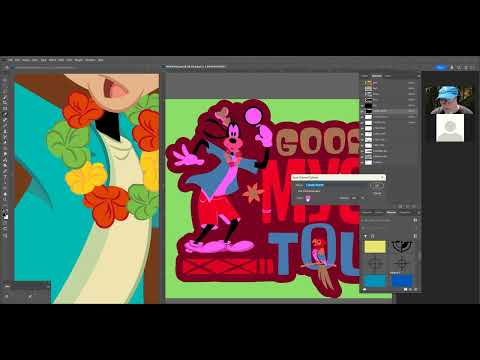
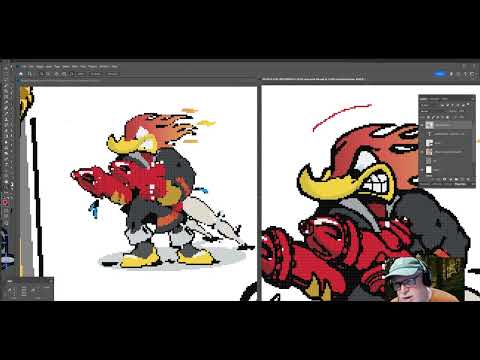
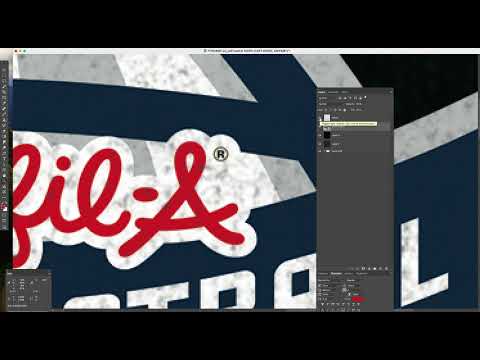
Photoshop separation CLEAN UP after pulling out colors from your selection. Many of us have seen those dreaded left over pixels after we have pulled out a color from an image. This short video shows one way to address the left over pixels from a selection. We get these from having to color separate a customers low resolution art where the pixel edges have blended. This blending of the edges comes from various areas of the art process. It may be due to saving as a jpg for the web where color data has been stripped out, re-sizing a pixel image within Photoshop, as well as from copying a vector art file from a vector program and then pasting into a Photoshop file (using anti-aliasing) explained in another one of my video's. Here, we show a method to get rid of those left over pixels. Keep in mind, good seps take more time so this is not a short cut or a quick fix. It's more work to do it right but it's a good method.
- 81Просмотров
- 1 неделя назадОпубликованоDot-Tone-Dan Campbell
Photoshop separation CLEAN UP after pulling out colors
Похожее видео




Популярное
Новини