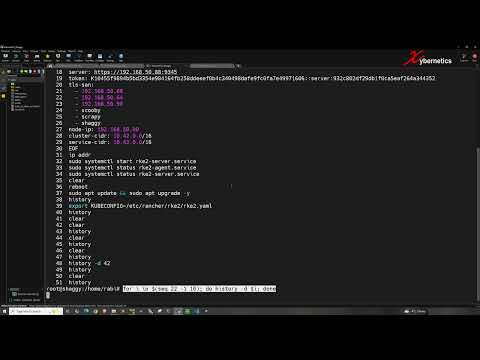
This guide will help you quickly install a cluster with default options. Installing Rancher RKE2 involves setting up the RKE2 Kubernetes cluster and then deploying the Rancher management server on top of it. Here are the steps-by-step commands featured in my video. For ALL Nodes (3 Control Plane + 1 Worker): ------------------------------------------- These commands are needed on all 4 nodes. sudo apt update && sudo apt upgrade -y sudo apt install -y curl wget gnupg2 software-properties-common sudo timedatectl set-ntp true sudo swapoff -a sudo sed -i '/ swap / s/^\(.*\)$/#\1/g' /etc/fstab sudo modprobe br_netfilter sudo modprobe overlay cat <<EOF | sudo tee /etc/sysctl.d/ = 1 = 1 = 1 EOF sudo sysctl --system ◇◆◇◆◇◆◇◇◆◇◆◇◆◇◇◆◇◆◇◆◇◇◆◇◆◇◆◇◇◆◇◆◇◆◇◇◆ Installation of RKE2 on Control Nodes ------------------------------------- For Control Plane Nodes (3 nodes): curl -sfL | sudo sh - sudo systemctl enable ◇◆◇◆◇◆◇◇◆◇◆◇◆◇◇◆◇◆◇◆◇◇◆◇◆◇◆◇◇◆◇◆◇◆◇◇◆ Installation of RKE2 on Worker Nodes ------------------------------------ For Worker Node (1 node): curl -sfL | sudo sh - sudo systemctl enable ◇◆◇◆◇◆◇◇◆◇◆◇◆◇◇◆◇◆◇◆◇◇◆◇◆◇◆◇◇◆◇◆◇◆◇◇◆ Config File For Control Node 1 - "scooby" ( ) --------------------------------------------------------- sudo mkdir -p /etc/rancher/rke2/ && sudo sh -c 'cat > /etc/rancher/rke2/ ' <<'EOF' tls-san: - CTRL_NODE1_IP - CTRL_NODE2_IP - CTRL_NODE3_IP node-ip: CTRL_NODE1_IP cluster-cidr: service-cidr: EOF sudo systemctl start sudo cat /var/lib/rancher/rke2/server/node-token Config File For Control Node 2 - "scrapy" ( ) --------------------------------------------------------- sudo mkdir -p /etc/rancher/rke2/ && sudo sh -c 'cat > /etc/rancher/rke2/ ' <<'EOF' server: token: ####YOURTOKEN#### tls-san: - CTRL_NODE1_IP - CTRL_NODE2_IP - CTRL_NODE3_IP node-ip: CTRL_NODE2_IP cluster-cidr: service-cidr: EOF sudo systemctl start Config File For Control Node 3 - "shaggy" ( ) ------------------------------------------------------- sudo mkdir -p /etc/rancher/rke2/ && sudo sh -c 'cat > /etc/rancher/rke2/ ' <<'EOF' server: token: ####YOURTOKEN#### tls-san: - CTRL_NODE1_IP - CTRL_NODE2_IP - CTRL_NODE3_IP node-ip: CTRL_NODE3_IP cluster-cidr: service-cidr: EOF sudo systemctl start Config File For Worker Node - "velma" ( ) ----------------------------------------------------- sudo mkdir -p /etc/rancher/rke2/ && sudo sh -c 'cat > /etc/rancher/rke2/ ' <<'EOF' server: token: ####YOURTOKEN#### node-ip: EOF sudo systemctl start sudo systemctl status ◇◆◇◆◇◆◇◇◆◇◆◇◆◇◇◆◇◆◇◆◇◇◆◇◆◇◆◇◇◆◇◆◇◆◇◇◆ Verification -------- After all nodes are joined, you can verify with: sudo ln -s /var/lib/rancher/rke2/bin/kubectl /usr/local/bin/kubectl export KUBECONFIG=/etc/rancher/rke2/ kubectl get nodes kubectl get pods -A ◇◆◇◆◇◆◇◇◆◇◆◇◆◇◇◆◇◆◇◆◇◇◆◇◆◇◆◇◇◆◇◆◇◆◇◇◆ Installing Rancher Management UI Into Your RKE2 Cluster ------------------------------------------------------- Install Rancher via Helm (run these commands on only ONE control plane node!) curl | bash helm repo add rancher-latest helm repo add jetstack helm repo update kubectl apply -f helm install cert-manager jetstack/cert-manager \ --namespace cert-manager \ --create-namespace \ --version kubectl -n cert-manager wait --for=condition=Ready pods --all --timeout=300s helm install rancher rancher-latest/rancher \ --namespace cattle-system \ --create-namespace \ --set hostname=rancher.########YOURDOMAIN########.com\ --set replicas=3 \ --set bootstrapPassword=rabi123 ◇◆◇◆◇◆◇◇◆◇◆◇◆◇◇◆◇◆◇◆◇◇◆◇◆◇◆◇◇◆◇◆◇◆◇◇◆ Verification (Run on the same node): ------------------------------------- kubectl -n cattle-system get pods kubectl -n cattle-system get svc ◇◆◇◆◇◆◇◇◆◇◆◇◆◇◇◆◇◆◇◆◇◇◆◇◆◇◆◇◇◆◇◆◇◆◇◇◆ Testing On Web Browser ---------------------- # Edit Windows Host file rancher.########YOURDOMAIN########.com # Open Web Browser and enter https://rancher.########YOURDOMAIN########.com # Rancher setup Enter the "bootstrapPassword". After that, click on "Log in with local User" button. "`-._,-'"`-._,-'"`-._,-'"`-._,-'"`-._,-'"`-._,-'"`-._,-'"`-._,-'"`-._,-'"`-._,-'"`-._,-'"`-._,-'"`-._,-'"`-._,-'"`-._, #kubernetes #fypシ #github #rke2
- 701Просмотров
- 1 месяц назадОпубликованоSlap Ya Administrator
Quick Start - Installing Rancher RKE2
Похожее видео






Популярное
Новини