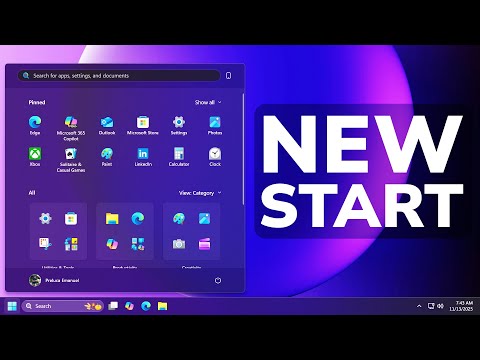
🔧 Overview Windows 11 has introduced a brand-new Start Menu design — but Microsoft is rolling it out slowly, and most users don’t get it immediately. In this video, I’ll show you how to force-enable the new Start Menu even if it hasn’t officially rolled out to your device yet. I’ll walk you through checking your build version, downloading ViveTool, enabling the feature with a single command, and activating the new Start Menu instantly after a restart. Whether you're a Windows enthusiast, power user, or just curious about the update, this guide makes it fast, safe, and easy. 🔧 What You’ll Learn ⦁ How to check if your Windows 11 build supports the new Start Menu ⦁ Why many users don’t get the update right away (staged rollout) ⦁ How to safely download and use ViVeTool ⦁ Exact command to force-enable the new Start Menu ⦁ How to restore the old Start Menu if you don’t like the change 📌 Commands Used in This Video 1. Enable new Start Menu: vivetool /enable /id:47205210 2. Revert to the classic Start Menu: vivetool /reset /id:47205210 3. Navigate to downloads folder: cd C:\Users\YourUserName\Desktop\ViveTool (replace "YourUserName" with your actual username) 🪟 Why Use ViVeTool? ViVeTool is a trusted open-source utility that allows you to enable hidden or experimental Windows features before they reach the general public. This method is commonly used by Windows power users and is safe as long as you follow instructions carefully. 👍 If You Found This Helpful ⦁ Like the video ⦁ Comment your thoughts about the new Start Menu ⦁ Subscribe for more Windows 11 tips ⦁ Share with someone waiting for this update Your support really helps the channel grow! 🔍 Hashtags #windows11 #Windows11StartMenu #windows11tips #windowsupdate #ViVeTool #microsoftwindows #techguide #pctutorial #windowsfeatures #Windows11Update #windowstutorials #Windows11Tutorial #techtips
- 229Просмотров
- 2 недели назадОпубликованоTech Simplified
How to Enable the NEW Windows 11 Start Menu (25H2)
Похожее видео
Популярное
Новини