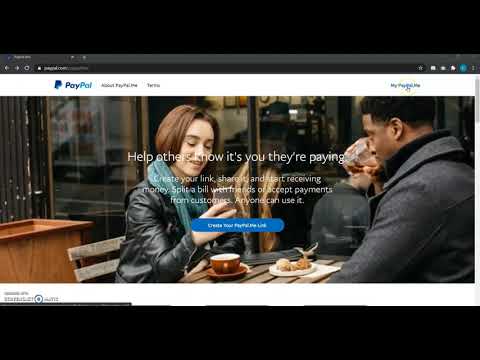
In this video series, we are looking at various ways to accept PayPal payments with Google Forms. In this second part, watch how to add dynamically calculated amount to your PayPal link, so that your users can pay you the right amount. Timestamp 00:00 Introduction 01:57 Set payment method description question 03:59 Dynamically pre-fill link with order amount 04:50 Dynamic calculation of order amount 05:43 Customize the PayPal link to dynamically pre-fill order amount 08:10 Review: 4 ways to accept payments in Google Forms 𝗡𝗲𝗮𝗿𝘁𝗮𝗶𝗹 𝗮𝗱𝗱-𝗼𝗻 𝗳𝗼𝗿 𝗚𝗼𝗼𝗴𝗹𝗲 𝗙𝗼𝗿𝗺𝘀 (𝗵𝘁𝘁𝗽𝘀://𝗻𝗲𝗮𝗿𝘁𝗮𝗶𝗹.𝗰𝗼𝗺) helps: - to show your customers how much they have to pay and - get the same amount prefilled in the PayPal link This is Part 2 of the 4-part video series where we talk about various ways to accept PayPal payments with Google Forms. And also the advantages and disadvantages with each approach. With this method, using the Neartail add-on for dynamic total calculation and using it in the PayPal link, the number of payment related mistakes are significantly reduced. Still, the reconciliation will have to be done manually. Customers have to enter their PayPal Id or Payment Reference number in an other question in Google Forms. Part 1: Add a PayPal link in Google Forms confirmation page and to pre-fill it with a specific fixed amount ( ) 𝗣𝗮𝗿𝘁 𝟮: 𝗗𝘆𝗻𝗮𝗺𝗶𝗰𝗮𝗹𝗹𝘆 𝗮𝗱𝗱 𝗰𝗮𝗹𝗰𝘂𝗹𝗮𝘁𝗲𝗱 𝗮𝗺𝗼𝘂𝗻𝘁 𝘁𝗼 𝗮 𝗣𝗮𝘆𝗣𝗮𝗹 𝗹𝗶𝗻𝗸 𝘄𝗶𝘁𝗵𝗶𝗻 𝗚𝗼𝗼𝗴𝗹𝗲 𝗙𝗼𝗿𝗺𝘀 ( ) Part 3: Send PayPal link with calculated amount in email notification to respondents ( ) Part 4: Directly accept payments within Google Forms before submission ( ) Read more :
- 13845Просмотров
- 4 года назадОпубликованоNeartail Order Forms
Accepting PayPal Payments on Google Forms | Dynamically Pre-fill PayPal.me link with Amount
Похожее видео








Популярное
Новини